Developer Setup
This documentation is deprecated and no longer maintained. Check out the new and improved documentation here.
- Installation
- Before Running vCDAT
- Running vCDAT
- Developing a Feature
- Updating vCDAT npm Packages
- Local vcs-widgets
- Important Links
-
Basics
apt update apt upgrade apt install git openssl gcc libglu1-mesa mesa-utils libsm6 x11-apps -
cd Downloads/
bash Anaconda2-44.4.0-OSYSTEM-x86_64.sh
conda config --set ssl_verify false
cd ~/Path/To/Projects
git clone git@github.com:USERNAME/vcdat.git
cd vcdat
./scripts/setup.sh
-
Turn on/off uvcdat tracking:
export UVCDAT_ANONYMOUS_LOG=no -
download data
vcs_download_sample_data
-
start the development server
source activate nightly ./scripts/autorun.sh -
open browser to
localhost:5000 -
click the round
+next to Variables in the upper left -
click add
-
navigate to
anaconda2/envs/nightly/share/uvcdat/sample/data/ctl.nc -
click
ctl.nv -
click
ctl -
drag
ctlon to the canvas
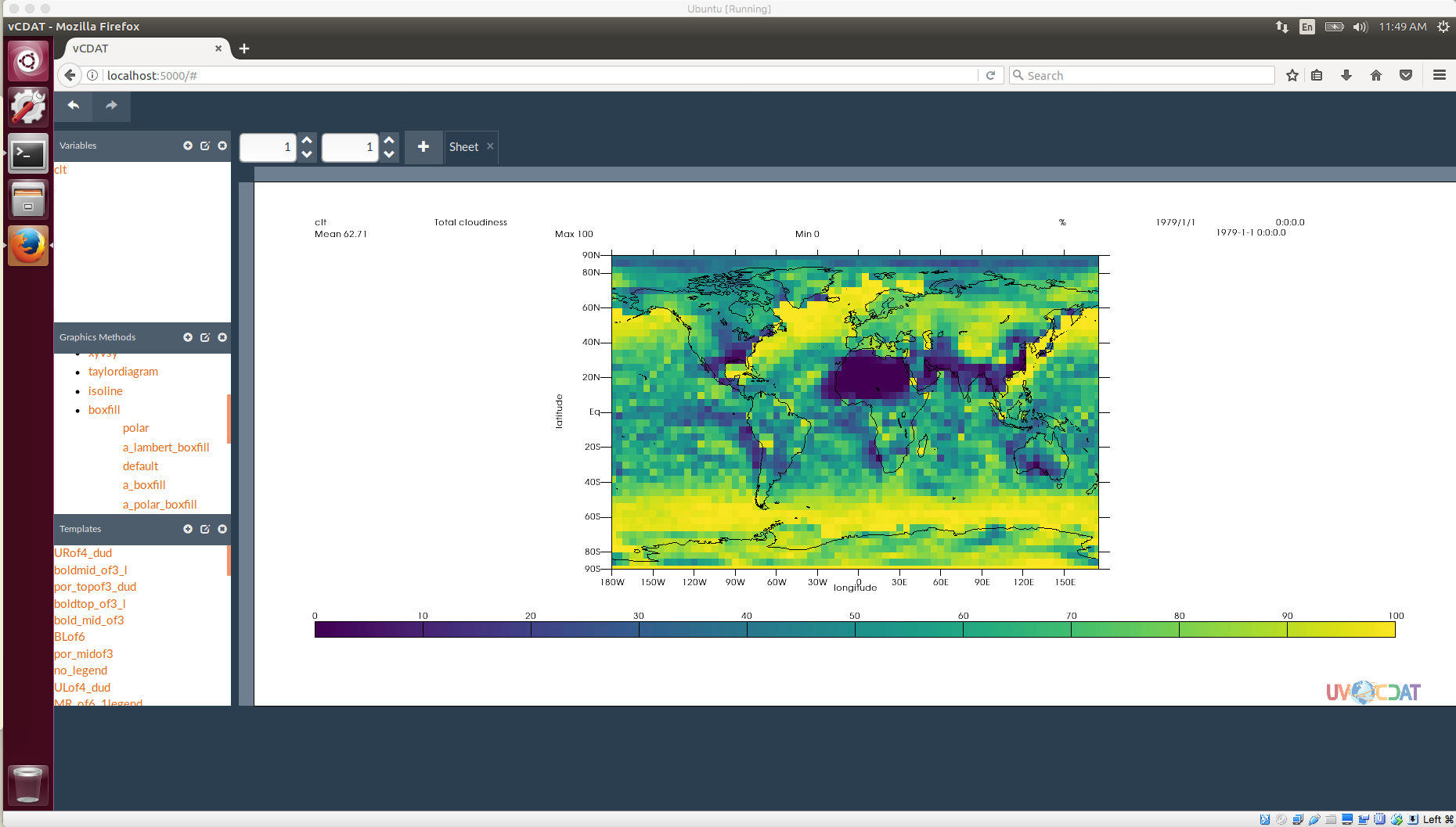
When developing a feature for vCDAT, please follow the process listed on the home page
cd vcdat
git pull
./scripts/setup.sh
cd frontend
npm install
When running the autorun script you may see the following line displayed:
vcs-widgets is not symlinked, so will not be automatically watched.
This is generally fine, but is not what we want if we are developing on that package. To get a local version into vcdat we just need to tell npm to link it.
- Create a folder to store global npm modules. For this example we will use
~/npm-global - Tell npm to use the global folder, otherwise it may get confused.
npm config set prefix ~/npm-global/ - Navigate into the vcs-widgets directory:
cd VCS-widgets - Register that the package can be linked to:
npm link - Navigate back to the vcdat frontend directory:
cd ../vcdat/frontend - Run
npm link vcs-widgets
Now when you execute the autorun script the symlink message should be gone, and the widgets should reflect the local version that was linked.