Gator Scheduler is a react-native expo application for Green Level High School that helps keep parents and the community up to date. The application is designed for use on phones, but can also be used on tablets and in web browsers. It can be used in multiple mobile operating systems such as Android or iOS.
Some features include:
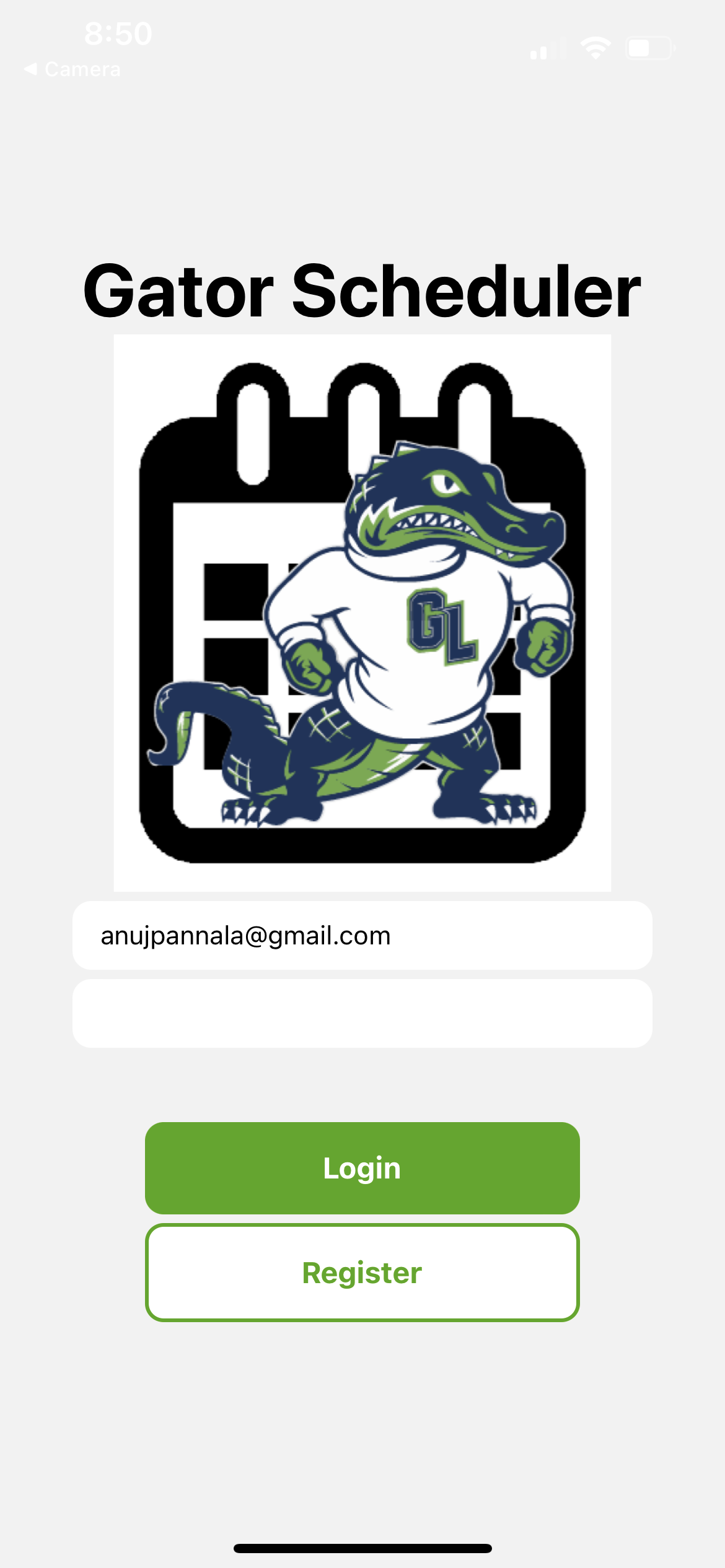
- Login and Registration - Users can register for an account that is stored in Firebase and login to the app with that account. Reminders created are saved within the account and are viewable upon login.
- School Calendar - a calendar is viewable in the app to allow users to organize events by day.
- Activities Schedule - There are cards editable for each day that allows users to place activities in them and create a schedule in order to help remind them of events.
- Upcoming events - Users can scroll through the activities schedule and calendar in order to see upcoming events that they need to be reminded of.
- Photo Sharing - Teachers and Students can share photos from the gallery on their device on multiple apps such as messaging apps, email apps, and social media apps.
- Absence Notification - Parents can notify school when a student is going to be absent so plans can be made and the student will be able to make up work faster.
- Social Media - There are multiple social media applications accessible through the app depending on what apps the user has installed on their device, and the user can use those social media apps through Gator Scheduler.
- Grade Drop Notification - Teachers are able to notify parents when a student's grade drops beyond a certain point so that plans can be made to bring the student's grade up. This feature was recommended by our schools administration.
- Bug Reporting - Users are able to report any bugs discovered to our emails which are provided in the application.
For more information, check the documentation.
Use the package manager npm to install the necessary libraries in the root directory of the project.
npm install expo-image-picker
npm install expo-clipboard
npm install react-native-calendars
npm install react-native-paper
npm install @react-navigation/native
npx expo install react-native-screens react-native-safe-area-context
npm install @react-navigation/native-stack
npx expo install firebase
For more information on the libraries, check the documentation: Image Picker, Clipboard, Calendars, Firebase, Paper, Navigation, Screens, and Safe Area.
For information on installing expo, see the following documentation.
Code from the React Native Share documentation was used as a template.
A youtube video was used as a tutorial to create the image picker in the application. A youtube video was used as a tutorial to create the login. A youtube video was used as a tutorial to create the calendar.
Images from the following websites were used in our application and are either covered under the fair use for educational purposes guidelines or non-copyrighted: Gator and Calendar.
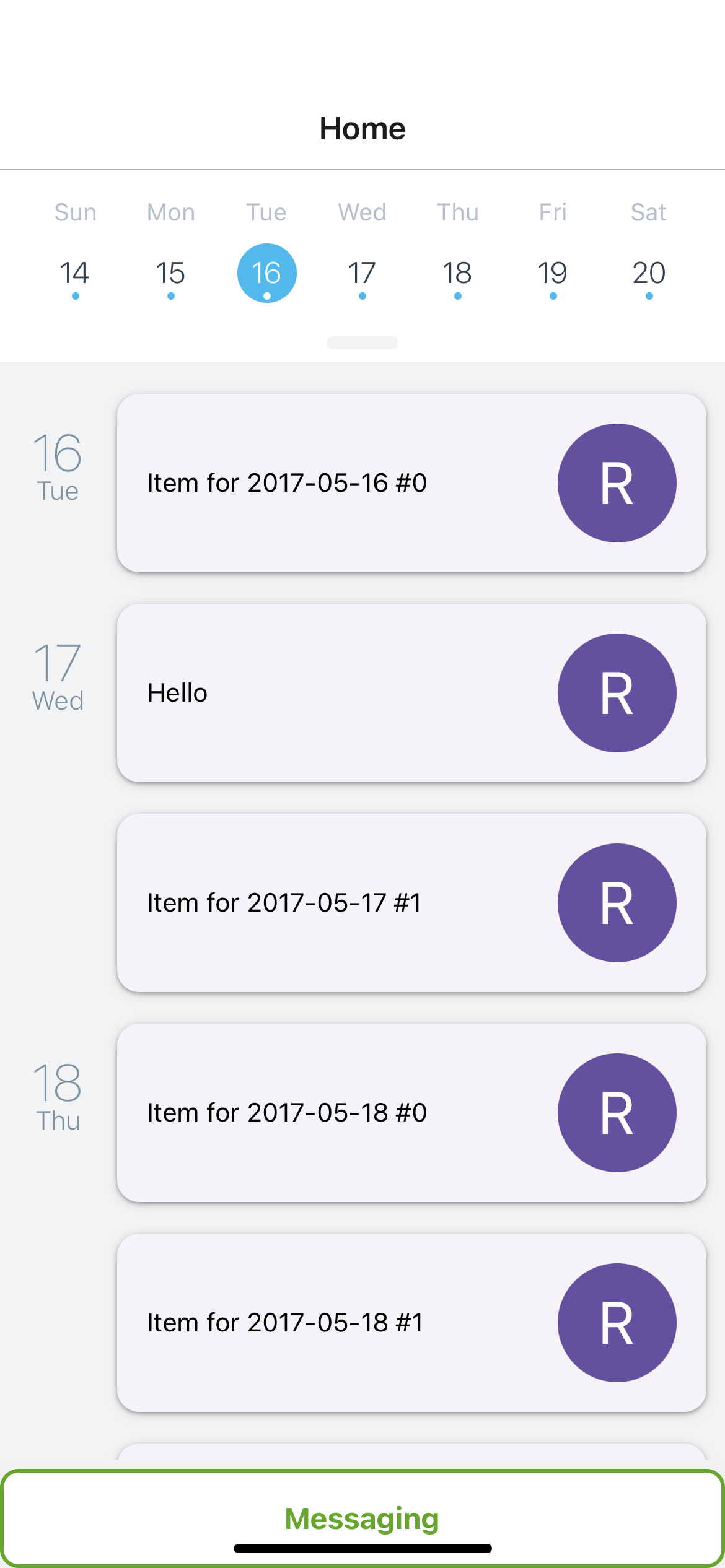
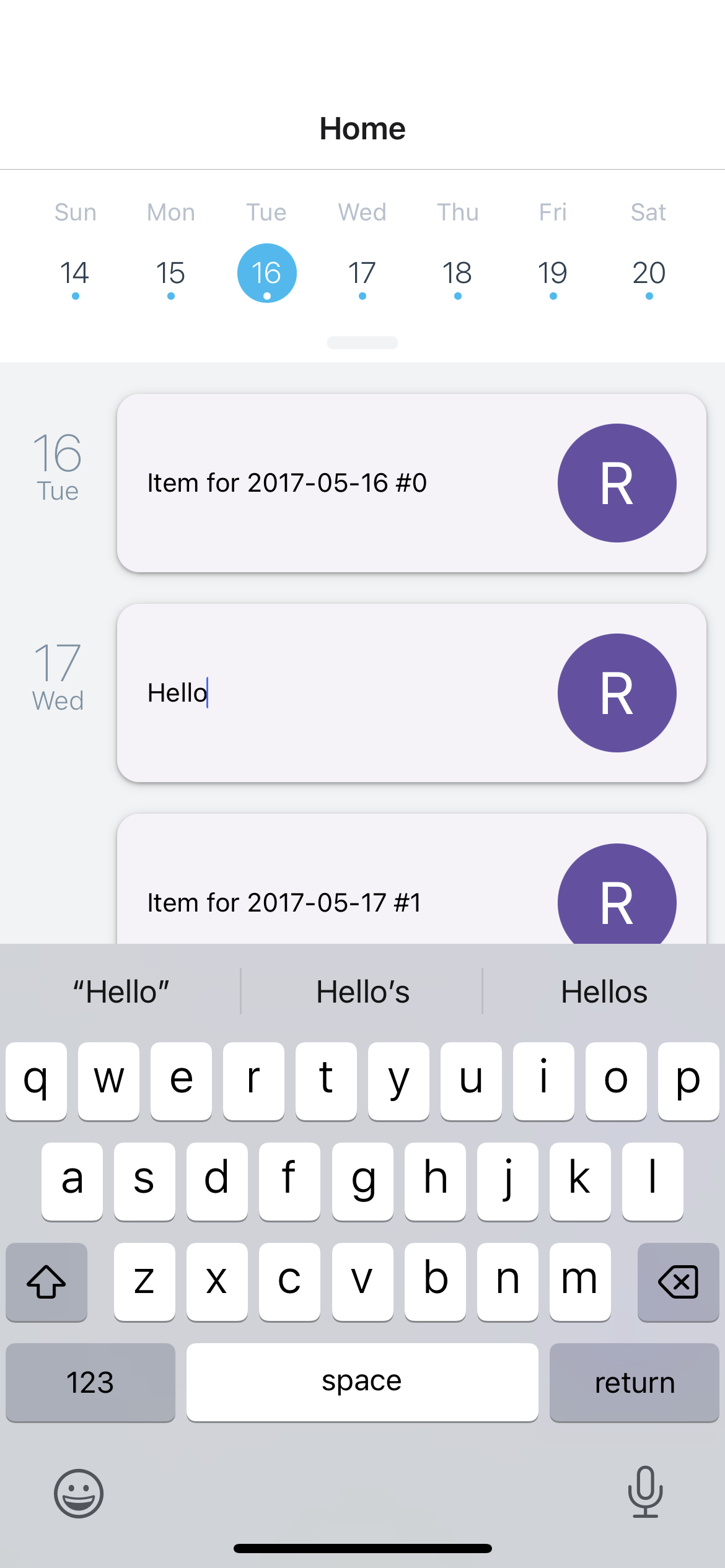
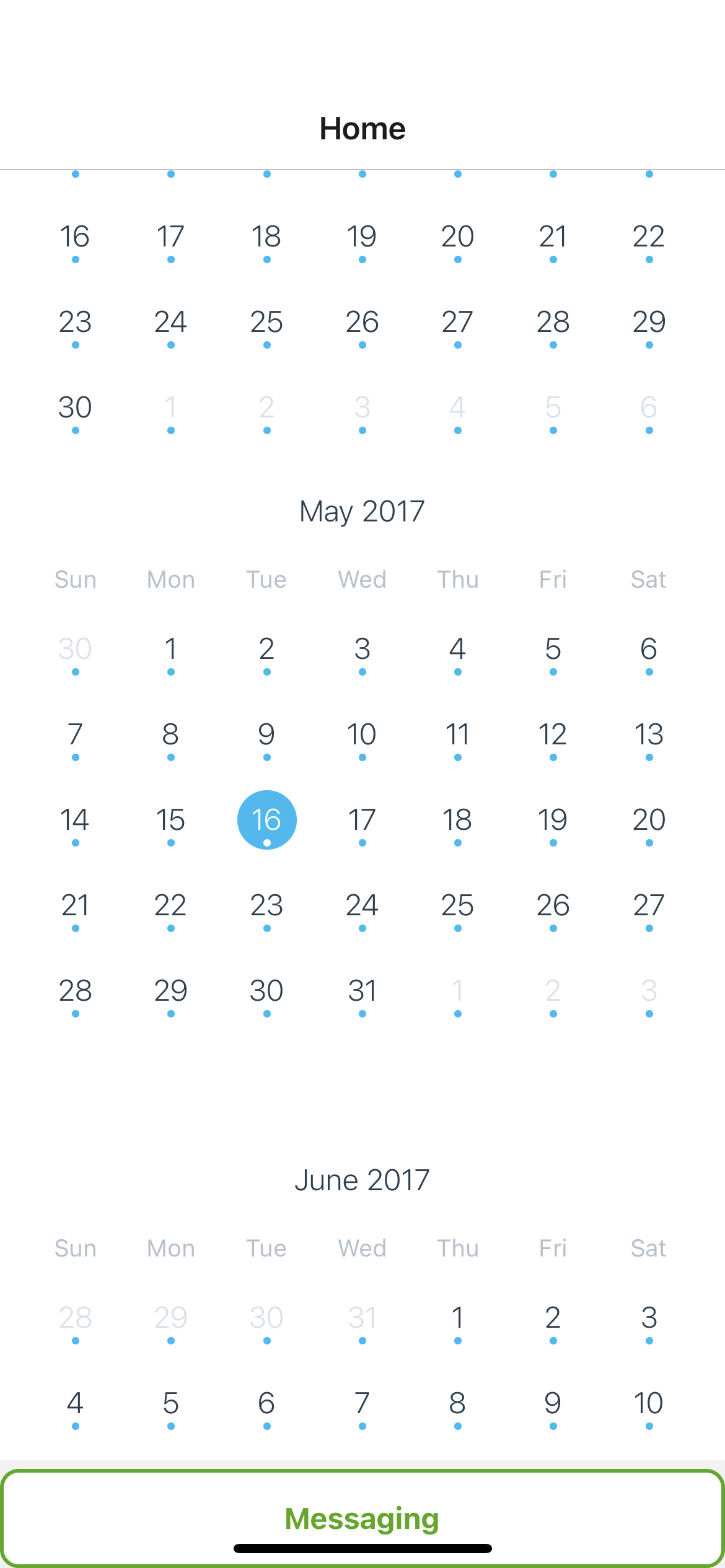
Alternatively, the user can press the tab above the schedule to make the calendar drop down, allowing them to find specific dates on the calendar.

This is the last screen of our application, the messaging screen. It allows the user to notify the school about student absences, report falling grades to parents, share photos to teachers and students, use multiple social media applications installed on the users device, report bugs to us should the user discover any, and navigate back to the home screen with the homescreen button. It also allows the user to see our works cited with the link at the bottom of the screen along with the school website linked as well to allow parents to access it quickly.

This shows an example of what is pulled up when the notify, report, share image, or use buttons are pressed. It shows the base text which serves as instructions for each messaging option and is editable, shows people that are often messaged as suggestions on who to message, apps installed on the device such as messaging apps, email apps, and social media applications that can be used for messaging, and other options at the bottom dependent on the device.
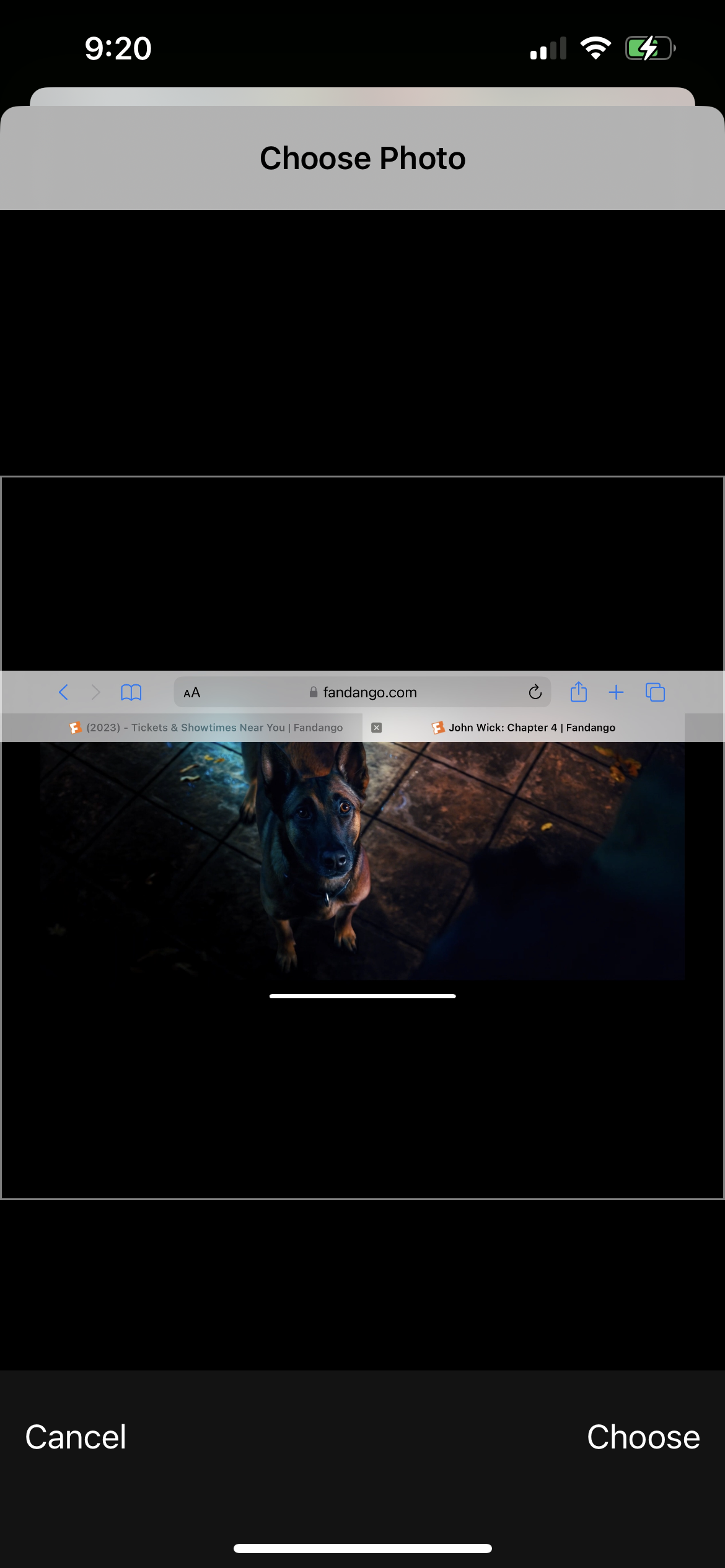
This shows what happens when the pick image button is pressed. It pulls up a gallery of all photos on the device and allows the user to select one, and then gives the user the ability to crop the photo and move it in and out of frame. Then the user can choose the image and it is copied to their clipboard, allowing them to paste it in the share image option following the instructions.
Pull requests are welcome. For major problems, please open an issue first to discuss what needs to be changed.
Project is not open to contributions.
For errors or if help is needed, use the support and bug reporting feature built-in to the application.

Here is our Works Cited.