docker skeleton for creating a controlled environment for php applications
- 64 bit operating system
- Docker (https://www.docker.com/products/docker)
- A pack of cigarettes
- Download or checkout this repository.
- Open a terminal and navigate to the skeleton.
- run
docker-compose up --buildordocker-compose up -dto run in background after first build - After docker completed downloading all images, the services will run
- You need to add the following entries to your /etc/hosts file:
- 127.0.0.1 databrydge.test
- 127.0.0.1 dataswitcher.test
- Download or git clone databrydge_aws and/or dataswitcher_aws in the data directory.
- Enter the console container, start with:
docker exec -i -t dbg_console sh, then usecd databrydge, runcomposer install - Copy the .env.example to .env
- If you want to run commands in the app container use command
docker-compose exec console shto open a terminal open within the docker container. Then usecdto switch to the working project folder. From there run commands as if on a local environment. If you are on the next level of Docker you can also use:docker-compose exec console /databrydge/yii cron/jobsto execute directly in the container without invoking a shell - To connect to mysql within the application use as ip address
dbg_mariadb, for mongodb usedbg_mongodb - To connect to mysql / mongodb from outside the docker application use
127.0.0.1
For a code editor use either:
- phpStorm
- Visual Studio Code
Handy stuff for developing:
- Robo 3T for MongoDB
- Sequel Pro for MySQL management
- Tower or SourceTree for GIT
Other handy tools on Mac:
- Spectacle (for window snapping)
- Lightshot screenshot create easy screenshows
- Charles for Proxy (testing OAuth flows)
- Dash for documentation PHP / Yii2
- 1Password for password management
It's handy to start processes like cron/jobs straight from phpStorm. This is really easy if you use a very good IDE like phpStorm.
To do this follow these steps:
- Go to preferences
- Go to languages / frameworks > PHP > and click the three ... next to CLI interpreter
- Click the plus button and select: "From Docker, Vagrant, VM, remote"
- Select Docker Compose and select your docker-compose.yml file. Also select the console service
- It will check the settings and connection to Docker. Make sure to select ""Connect to existing container (docker-compose exec)
- Close the settings page and in the right top click "Edit configurations"
- Add a new PHP script and point the path to the full path to your /yii file, ie. /Users/alex/Docker/data/databrydge_aws/yii
- Set arguments for instance to cron/jobs
- Click apply, you can run now and it will run inside the container directly. Keyboard shortcuts are ⌃(ctrl) + D for debug mode and ⌃(ctrl) + D for regular run mode
Added bonus is that you also have a nice debug button now (if you implemented XDebug) You can either run it in debug mode and then it will automatically hit the breakpoints without you clicking the listen button.
XDebug is only installed into the console container. Since most of the work is done there. It actually works by opening up a port on your host machine (we use 10000 to prevent conflicts with PHP FPM if we want to use web container too). It then listens for incoming connections from the console container.
Go to preferences, languages and frameworks, php, debug and enable XDebug and specify the correct port (10000)
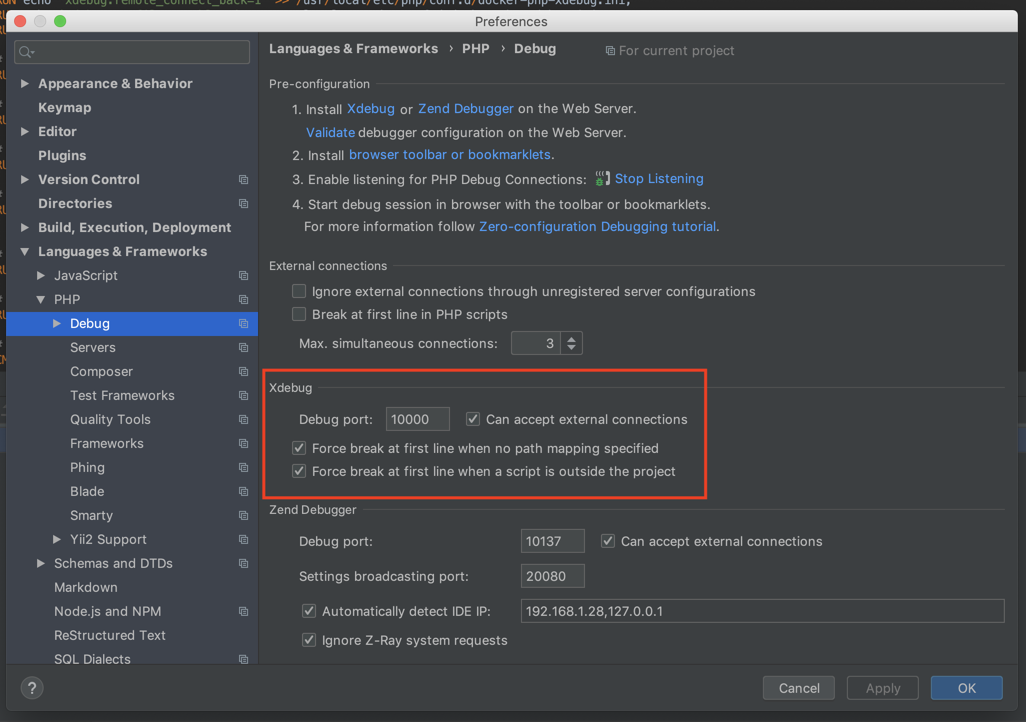
Now we need to setup a server under the same menu ("Servers"). This allows phpStorm to link the files in the container to the execution paths in the project.
Setup a server like this:
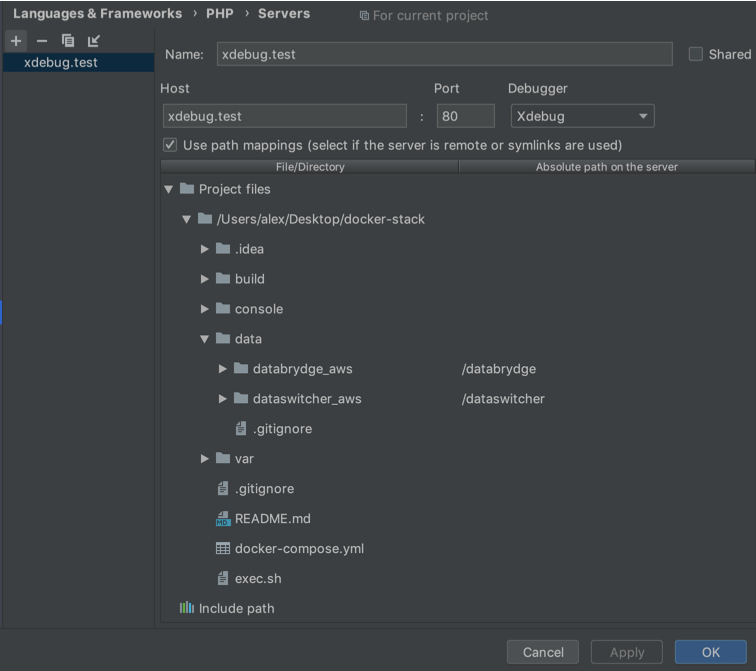
Now phpStorm nows when a file is being executed, the path is sent back remotely and mapped by phpStorm to a local file in your machine.
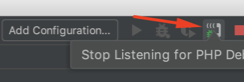
First click the listener icon to allow phpStorm to allow listening for debug connections on port 10000:
Don't forget to set a breakpoint in the code.
You can now execute the php script with the professional way:
docker-compose exec console /databrydge/yii cron/jobs
And the script should stop at the breakpoint.
Instructions for Visual Studio Code should be similar. The real significant step is to make sure the paths on your local machine are mapped to the paths inside the docker containers. phpStorm does this by using the "servers" setting.
You should install this plugin anyway for VisualCode (update these steps with pictures when you are setting up for VisualCode please!). The variable you should look at in this case is pathMappings.
The database settings can be changed in docker-compose.yml
You can change the php configuration in the services/php-apache/config/ folder.
Any .ini files you put here, will be loaded in php.
After changing any of the ini files, you'll need to rebuild. docker-compose up --build
The default configuration for the database is as follows:
- hostname: db
- root password: root
- user: db
- password: db
- database: db
Docker compose will start the following services You can access these services from a browser. For example: http://127.0.0.1:80 for the webserver
- The webserver (port: 80)
- Phpmyadmin (port: 8181)