Windows nowadays is an AI-ridden mess that is slow and unreliable. But there are key benefits to using Windows (if you must) over other operating systems like Linux distributions:
- Gaming
Many games run very well on Linux, some even with better performance than Windows, but there are also games that might even perform worse and some don't work at all due to lack of anti-cheat compatibility. Many online multiplayer games have to be run through Proton, a Windows compatibility layer for Linux, which anti-cheat systems may detect as cheating software. - Software Compatibility
Windows programs don't natively work on Linux, since they're built for a different kernel. Wine, a Windows compatibility layer which Proton is based off, is a common solution, however this doesn't work for all software. Some software may work but be buggy, while others don't work at all. The only other solution would be a virtual machine, but this may suffer from poor performance. - NVIDIA Drivers
A more specific reason, but NVIDIA GPU support is hit-or-miss with Linux. The community-made Nouveau drivers work well for most people, but don't support features such as G-SYNC. NVIDIA has also worked on official Linux drivers, however these are still a work-in-progress and aren't as stable or functional as Windows drivers.
Let's install Windows! You have two options:
- Windows 11 IoT Enterprise LTSC 2024
- Windows 10 IoT Enterprise LTSC 2021
You might be wondering, "What is this edition of Windows I've never heard of?" Windows IoT Enterprise LTSC is a specialised version of Windows that is designed for Internet of Things (IoT) devices, such as smart TVs and smart home devices. It is a stripped-down version of Windows, with no bloatware (including the Microsoft Store), less frequent feature updates, and (if you use Windows 10 IoT Enterprise LTSC 2021) longer update support.
Now you may also be thinking, "If it's for IoT devices, why should I use it over something like Windows 11 Pro?" Windows IoT Enterprise LTSC isn't that much different to regular Windows. It behaves just like regular Windows, runs all of your Windows apps, and there's nothing explicitly saying that you need to use it as an IoT platform.
You will need...
- A USB drive with at least 8 GB of storage
Make sure to back up any files on it that you want to keep. - A computer running Windows or Linux
- A copy of Windows IoT Enterprise LTSC
If you have important or personal files on your computer or the USB drive, back them up! This process involves completely wiping both the USB drive and your computer's internal storage. Do so with a separate USB drive (not the one you will be using later) or a cloud storage solution, such as Proton Drive.
You can download Windows IoT Enterprise LTSC from MAS. It is recommended to use Windows 11 IoT Enterprise LTSC 2024 as it is more up-to-date. However, if your device does not support Windows 11, you should instead use Windows 10 IoT Enterprise LTSC 2021. Unlike regular Windows 10, Windows 10 IoT Enterprise LTSC 2021 will continue to receive security updates until 13 Jan 2032.
Once you've downloaded the ISO, it's time to put the installer on the USB drive!
There are two ways you can flash a USB drive with the Windows installer, depending on your current operating system. If you haven't already plug in your USB drive (and back up important files on it).
To flash a USB on Windows, you will need to download Rufus. Once doing so, open Rufus. You will be met with a screen similar to this.
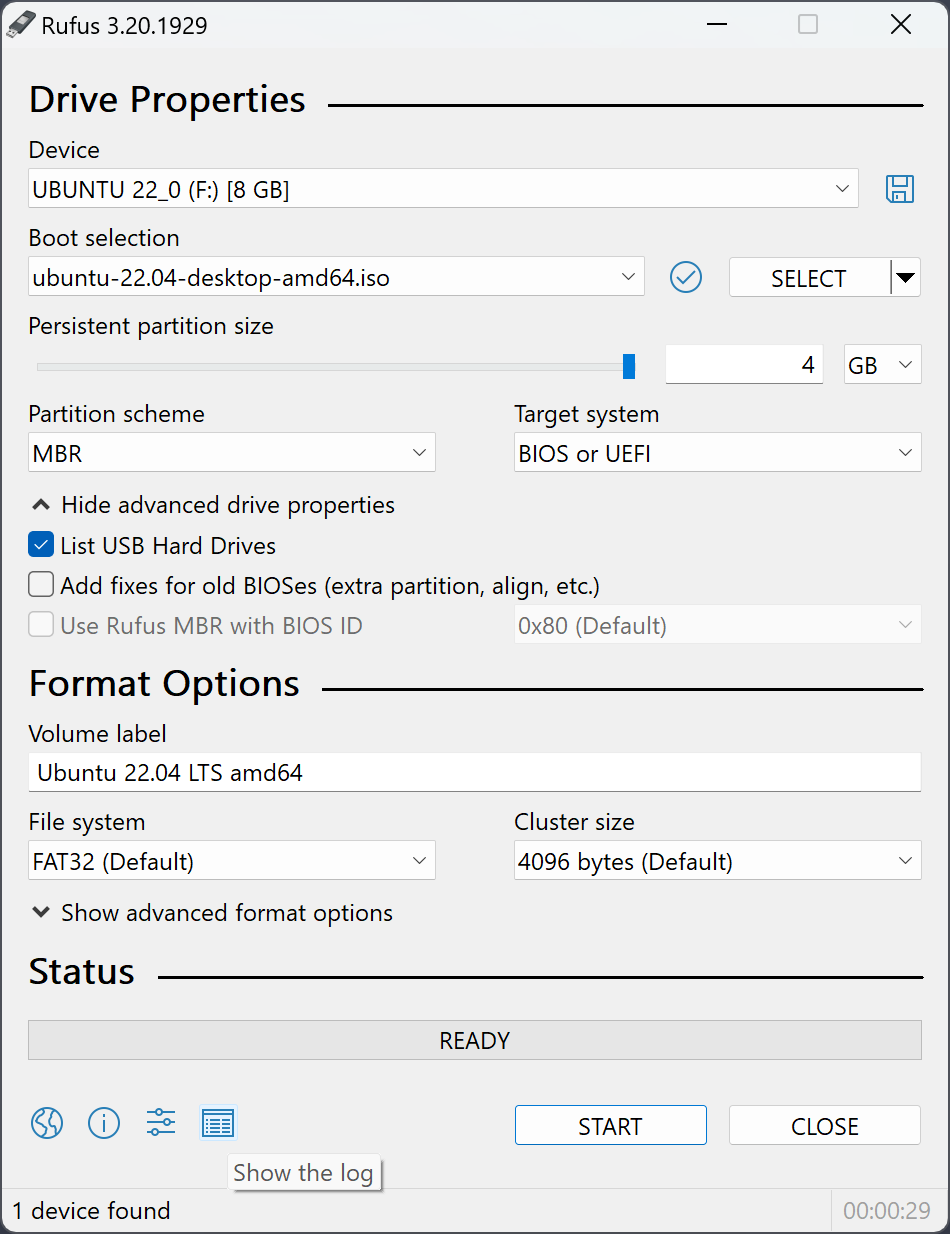
- Under 'Device', select your USB drive.
- Click 'SELECT' under 'Boot selection' and find and open your newly-downloaded ISO.
- Click 'START'! Rufus will now erase your USB drive and flash the Windows installer to it.
To flash a USB on Linux, you will need to download Ventoy. Your distribution may have a version of Ventoy in it's package repository. However, if it doesn't, go to the Downloads page and click 'ventoy-[version]-linux.tar.gz'. (You may be redirected to SourceForge. Click 'ventoy-[version]-linux.tar.gz' again and your download will start.) Once downloaded, extract it and run it the appropriate executable. (To be finished)
Now that you've flashed the installer to the USB drive, you must boot the installer from the USB drive. To do so, access your boot options menu when starting up your computer. The key to enter the boot options menu is different for every manufacturer. Here's a guide to get you into your system's boot options menu.
Select your USB drive from the list of boot options. If you are kicked back to the boot options menu upon selecting the USB drive or the installer does not boot, you may be required to disable Secure Boot (guide).
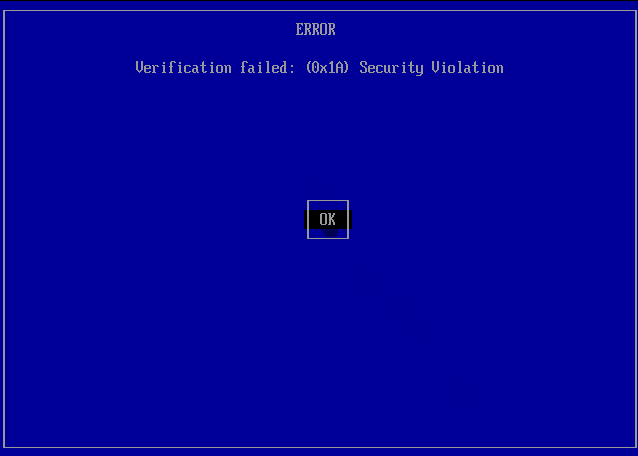
If you flashed the USB drive in Linux, you should boot into the Ventoy menu; select the ISO you copied to the drive. However, if you flashed the USB drive in Linux and you see this upon selecting the USB drive from the boot options menu, follow these instructions.
Now it's time to install Windows! Follow the on-screen instructions to install Windows. If you are asked whether you want to upgrade Windows or (re)install Windows (custom install), choose custom install. This should take anywhere from a few minutes to a couple hours (depending on your hardware).
(To be finished)